ChatGPT Images 2.5: How to Edit Photos With Better Prompts
The new image tools can do much more than make a picture from scratch. Here is a practical way to edit a photo you already have, with copy-ready prompts and honest limits.
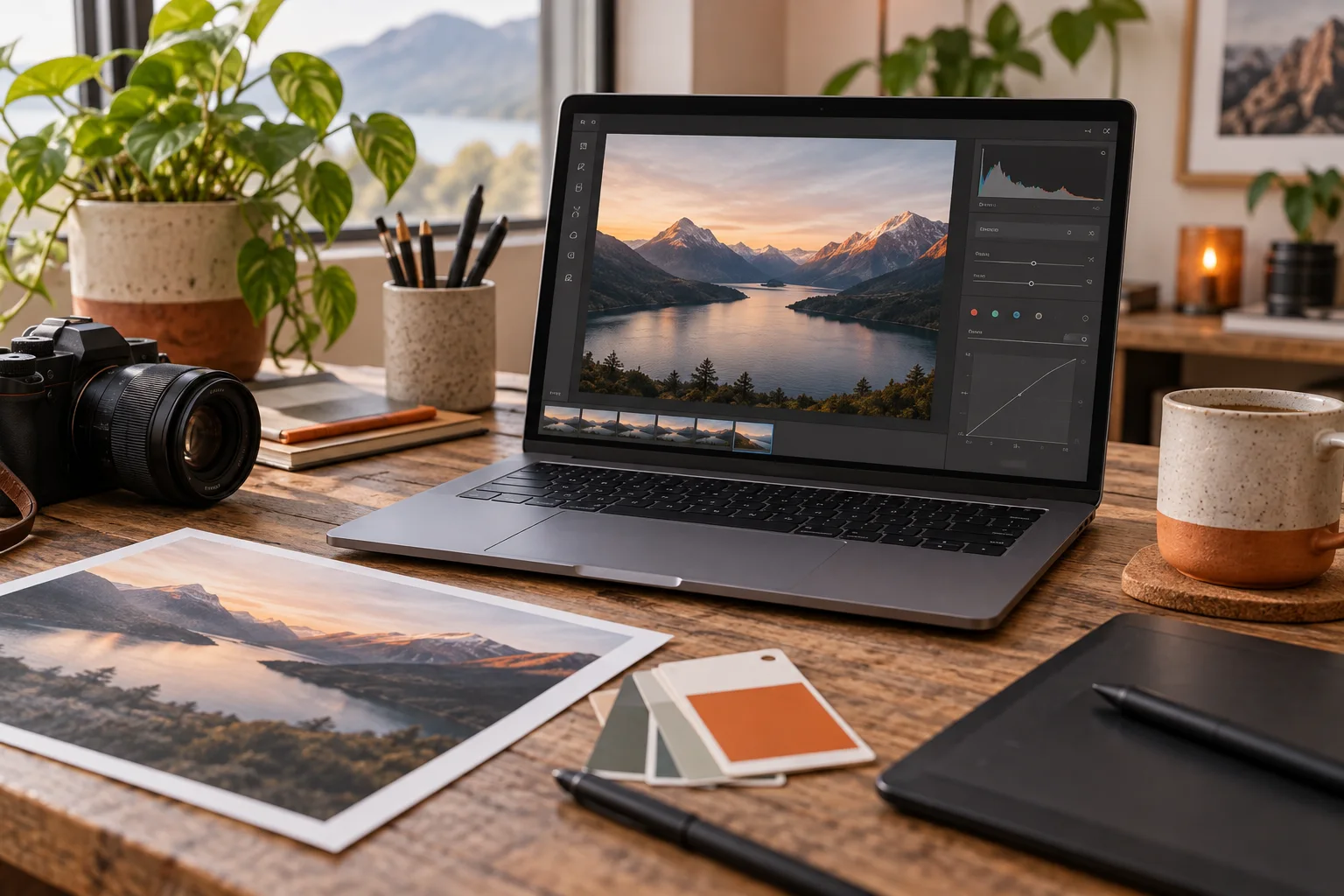
ChatGPT Images 2.5 can edit a photo you upload or an image you created in ChatGPT. The simplest workflow is to choose an image, describe one change, name what must stay the same, inspect the result, and make a narrower follow-up request if it drifted. You do not need a complicated prompt or a design background to begin.
OpenAI introduced Images 2.5 on September 8, 2026, highlighting more precise editing, improved subject preservation, and more consistent changes across multiple turns. Those are product claims, not a promise that every edit will be pixel-perfect. Its own help guide warns that a selected-area edit can affect pixels outside the area you highlighted.
This DailyDree guide separates official feature instructions from our copy-ready example prompts. The prompts are editorial examples to adapt to your own image; the illustrative images on this page are AI-generated and are not a controlled benchmark of ChatGPT Images 2.5.
Quick answer: how to edit a photo in ChatGPT
Upload a photo you have the right to use, or open an image already made with ChatGPT Images. Ask for one specific change in plain language. Add a preservation clause such as “keep the person, pose, clothing, framing, and all other objects unchanged.” Review the output at full size before saving or sharing it.
If only one area needs work, open the image editor and select that area, then describe the edit. You can also skip the selection tool and describe the location in the prompt. According to OpenAI, selection boundaries are not always exact, so compare the whole image with the original afterward.
- Open ChatGPT on web or mobile, select an existing image or upload your own.
- Describe the edit, its location, and what should remain unchanged.
- Use the selection tool if a specific region needs attention.
- Inspect edges, faces, text, shadows, and any details that matter.
- Ask for one correction at a time; save only when the image meets your needs.
What changed with ChatGPT Images 2.5?
OpenAI says Images 2.5 is better at preserving recognizable subjects from reference photos and making focused changes without rebuilding every other detail. It also describes more natural lighting and texture, faster generation, sketch-based guidance, templates, comments on images, and prompt sharing. Availability and controls can differ by device and account, so use the current interface and help guide rather than assuming every menu looks identical.
For a photo editor, the meaningful improvement is control across revisions. Instead of demanding a perfect image in one message, you can change the background, inspect it, then adjust only the lighting or a small object. Each step is easier to judge when the instruction is narrow.
| Your goal | Start with | What to inspect |
|---|---|---|
| Change the whole scene or mood | A direct prompt without selection | Whether the subject still looks like the original |
| Remove one distracting object | Select the object and describe what should replace it | Edges, shadows, and nearby objects |
| Correct text in an image | Specify exact replacement words and location | Every letter, spacing, and any unrelated text |
| Try a new crop | Use the aspect-ratio control or specify the desired ratio | Important details cut off at the edges |
The prompt formula that makes edits easier to control
Use five short parts: identify the source, state the single change, locate it, list the details to preserve, and describe the desired output. For example: “In the uploaded photo, remove the plastic bottle from the table on the right. Reconstruct the wood grain naturally. Keep the person, flowers, camera angle, colors, and all other objects unchanged. Return one realistic image.”
The preservation clause is important because “make this better” gives the model room to change composition, clothing, faces, or objects you did not intend to touch. OpenAI’s image-creation guidance likewise recommends being explicit about what should change and what should stay the same.
A short instruction can work for a simple edit. Add detail only where a mistake would matter: a face, a product label, a recognizable place, precise text, or a brand color.
12 copy-ready ChatGPT photo-editing prompts
Replace the bracketed words before using these examples. Results depend on the source image and may vary. None of the prompts guarantees exact preservation; always compare the result with the original.
| Task | Prompt to adapt |
|---|---|
| Remove a distraction | Remove only [object] from [location]. Rebuild the background naturally. Keep every person and other object unchanged. |
| Clean a product photo | Replace only the background behind [product] with a neutral studio surface. Preserve the product shape, label text, color, and realistic contact shadow. |
| Brighten a dark portrait | Improve exposure and natural skin tones in this portrait. Keep the person’s facial features, age, expression, hair, and clothing unchanged; avoid smoothing away skin texture. |
| Fix color cast | Neutralize the [yellow/blue/green] color cast. Preserve the original lighting direction and all objects; make colors believable, not oversaturated. |
| Change background | Change only the background to [specific place]. Match perspective and light direction. Preserve the main subject’s identity, pose, outline, and clothing. |
| Create a clean social crop | Reframe this image for a [square/vertical] post. Keep the subject fully visible and preserve important objects; extend the background only where needed. |
| Edit a room idea | Change only the [wall color] to [color]. Keep furniture, room layout, windows, and time of day unchanged. This is a visual mockup, not a construction plan. |
| Adjust food photography | Lift the natural light on the dish and reduce the distracting background clutter. Keep the food shape and ingredients accurate; do not add new ingredients. |
| Refine pet photo | Improve the lighting and remove [object] in the background. Preserve the pet’s markings, eye color, pose, and proportions. |
| Correct image text | Replace the text on [specific area] with exactly “[your text]”. Keep font weight, placement, other text, and layout unchanged. Check spelling carefully. |
| Make a professional headshot crop | Create a simple head-and-shoulders crop with a neutral background. Preserve my face, hair, age, expression, and clothing. Do not invent features or alter my identity. |
| Small follow-up correction | In the last result, correct only [specific error]. Restore [specific preserved detail] from the original image. Leave every other part unchanged. |
Illustrative before-and-after: protect the subject, change the setting
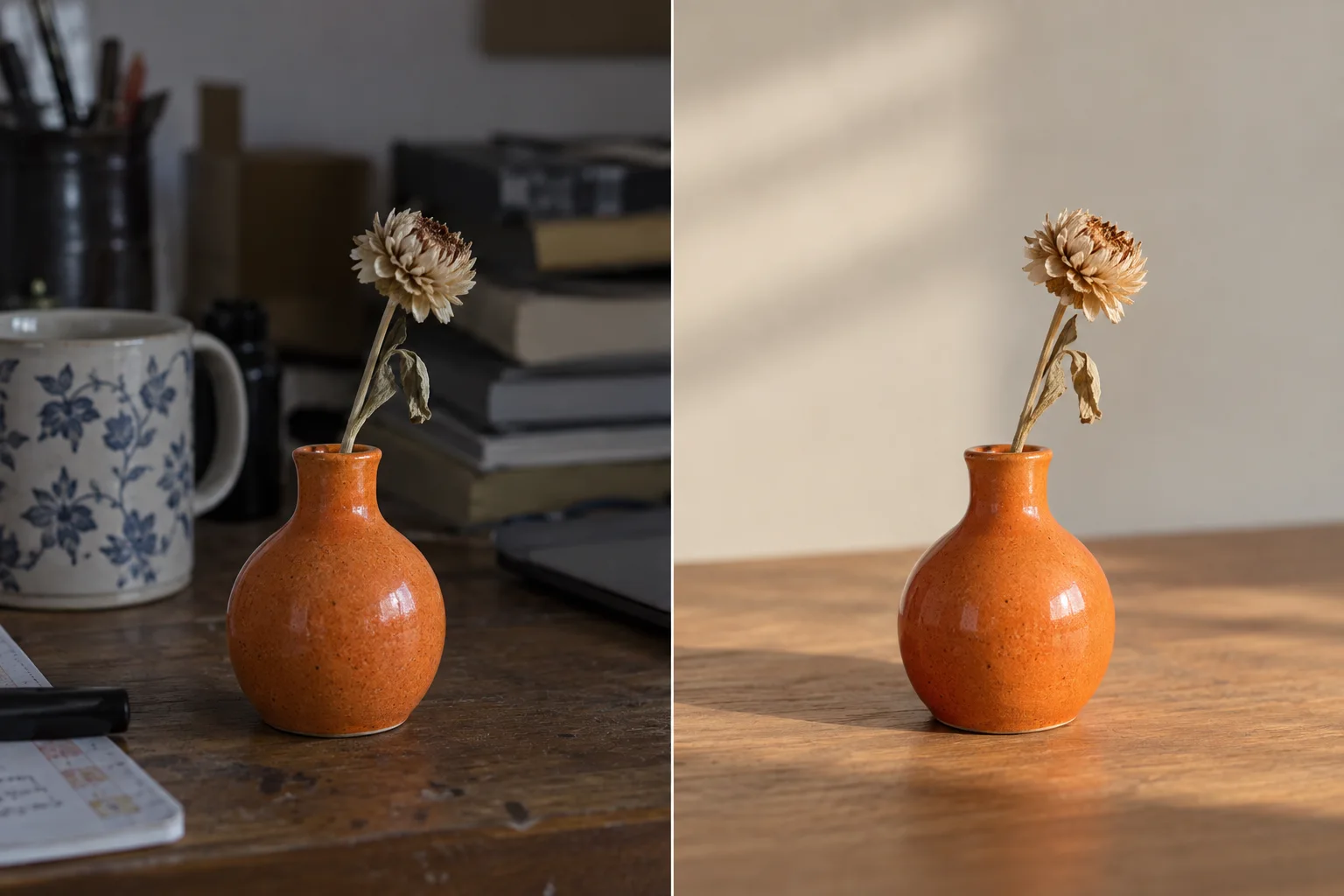
The side-by-side image below was generated specifically to explain the editing goal. It is an illustrative concept, not a verified output from the ChatGPT Images 2.5 editor. The vase and flower remain recognizably similar while clutter and lighting change. In your own edit, compare finer details at full resolution: the flower’s shape, the vase edge, and the shadow on the table.
A useful request for this kind of job would be: “Clean the background behind the orange vase and warm the natural light. Keep the vase, flower, camera angle, and wood surface unchanged. Do not add objects.” A second pass should repair only the details that drifted, not ask for a complete remake.
When the edit goes wrong: a quick troubleshooting guide
If the subject changes, return to the original image and try a narrower request. State the specific features to preserve, such as clothing seams, face shape, pet markings, product label, or a unique object. Selecting a small region can help, but do not assume it locks the rest of the image; OpenAI warns that changes may extend beyond the selection.
If text comes out wrong, supply the exact words in quotation marks and identify their location. Zoom in and check every character. For a business sign, packaging, legal disclaimer, or publication graphic, do not publish without a human proofread. If a high-stakes label needs pixel-perfect accuracy, finish the typography in a dedicated design editor.
If the image looks artificial, ask for realistic textures and restrained lighting rather than “cinematic,” “perfect,” or “ultra-smooth.” Request one correction at a time. Save the original separately so you can restart instead of compounding a weak first edit.
If the output is unsuitable, do not keep prompting endlessly. Use conventional photo-editing tools for exact retouching, layered files, print-critical work, or evidence photos where changing pixels could mislead the viewer.
| Problem | Next instruction |
|---|---|
| Face or product changed | “Restore the original facial/product details. Change only [target].” |
| Wrong region edited | “Change only [location]; leave [other region] untouched.” |
| Unnatural shadow | “Match the original light direction and add a realistic contact shadow.” |
| Text misspelled | “Use exactly [text], with no other letters or symbols.” |
| Too many changes | Return to the original and separate the work into smaller passes. |
Privacy, consent, and honest image labels
Use images you own or have permission to edit. Avoid uploading another person’s private image, sensitive document, or a client asset without appropriate consent and account-level review. Read the product’s current data settings before uploading confidential material. Do not represent an AI-altered documentary image as an untouched photograph.
For editorial or commercial publishing, label meaningful AI edits when the audience could otherwise be misled. Confirm usage rights to all source assets and inspect output for accidental trademarks, invented details, or inaccurate products. A realistic-looking image is not proof of what existed in the real scene.
A five-minute practice workflow
Pick a low-stakes image you own: a desk, pet, landscape, or product you photographed. Save a copy of the original. Try one prompt from the table above. Compare the result at full size, write down one error, and make one correction. If it still does not match, restart with a smaller edit. This practice teaches you more than memorizing a hundred prompts.
For wider AI-tool decisions, see our comparison of ChatGPT, Claude, and Gemini. If your task is researching information rather than editing an image, our Google AI Mode guide covers a different workflow.
Frequently Asked Questions
Can ChatGPT edit an existing photo?
Yes. OpenAI says ChatGPT Images can edit an image you upload or one created in ChatGPT. Describe the change you want and inspect the result before using it.
Is ChatGPT Images available for free?
OpenAI says ChatGPT Images is available on all tiers, although feature access and usage limits can vary. Check the current app and plan details before relying on a specific allowance.
Can I edit only one part of an image?
You can select an area and describe an edit, or describe the area directly in a prompt. OpenAI cautions that selections are not always precise and changes can extend beyond the highlighted area.
How do I stop ChatGPT from changing a face or product?
Ask for one narrow change and list the identity or product details that must remain unchanged. Compare the output with the original; exact preservation is not guaranteed.
Are the before-and-after images in this article tested ChatGPT results?
No. The side-by-side image is a clearly labeled AI-generated illustration of an editing goal, not a controlled ChatGPT Images 2.5 test result.
Sources
◆